Chusko Blog · 2026-10-01
How to cast PowerPoint slides to a TV without uploading
Open PPT or PPTX files in Chusko's web app and present static slides on a paired TV or browser. A screenshot guide to pairing, slide controls, and formatting limits.
Chusko opens both .ppt and .pptx files in the web app. Your browser renders the slides locally and sends their images to your paired Screen. PowerPoint does not need to be installed for this browser flow, and there is no cloud conversion step.
1. Connect your two devices
- On the receiving browser, open Chusko, choose I'm the Screen, then Host a room. For Android TV or Apple TV, use the Chusko TV app.
- On the phone, tablet, or computer holding the deck, open Chusko and choose I'm the Projector.
- Enter the six-character code shown on the Screen and select Join.
Start with both devices on the same Wi-Fi and keep the Projector open. The receiving TV must run Chusko or a compatible browser; Chusko does not send slides to a TV's built-in Chromecast or AirPlay receiver.
2. Open the presentation
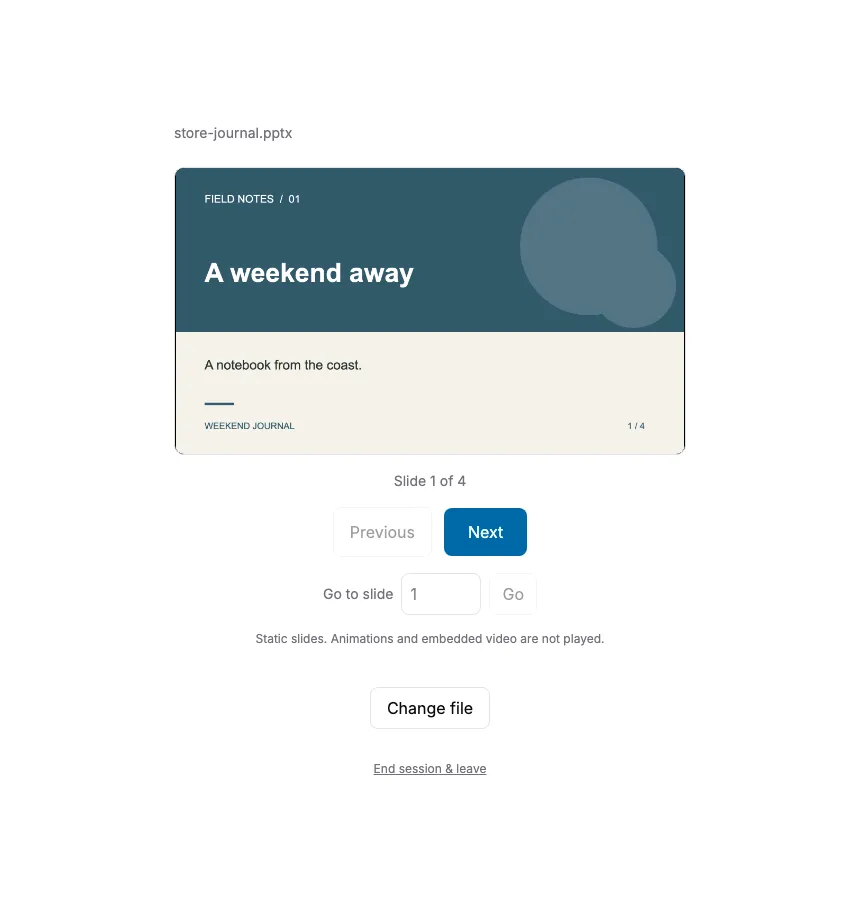
Select Choose file and pick your PPT or PPTX file. After preparation, the first slide appears in the Projector preview and on the Screen. The browser supports files up to 100 MiB, with a separate limit on unpacked presentation data. Large images can make a smaller file exceed that second limit; simplify the deck if Chusko reports it is too large.
3. Present at your own pace
Use Next and Previous, or enter a number in Go to slide and select Go. In the web app, arrow keys and Page Up / Page Down navigate; Space advances and Home / End jump to the first / last slide when focus is outside the controls. Each change updates the paired Screen. Slides are shown one at a time; the multi-page layouts and rotation controls belong to PDFs.
Android and iPhone controls
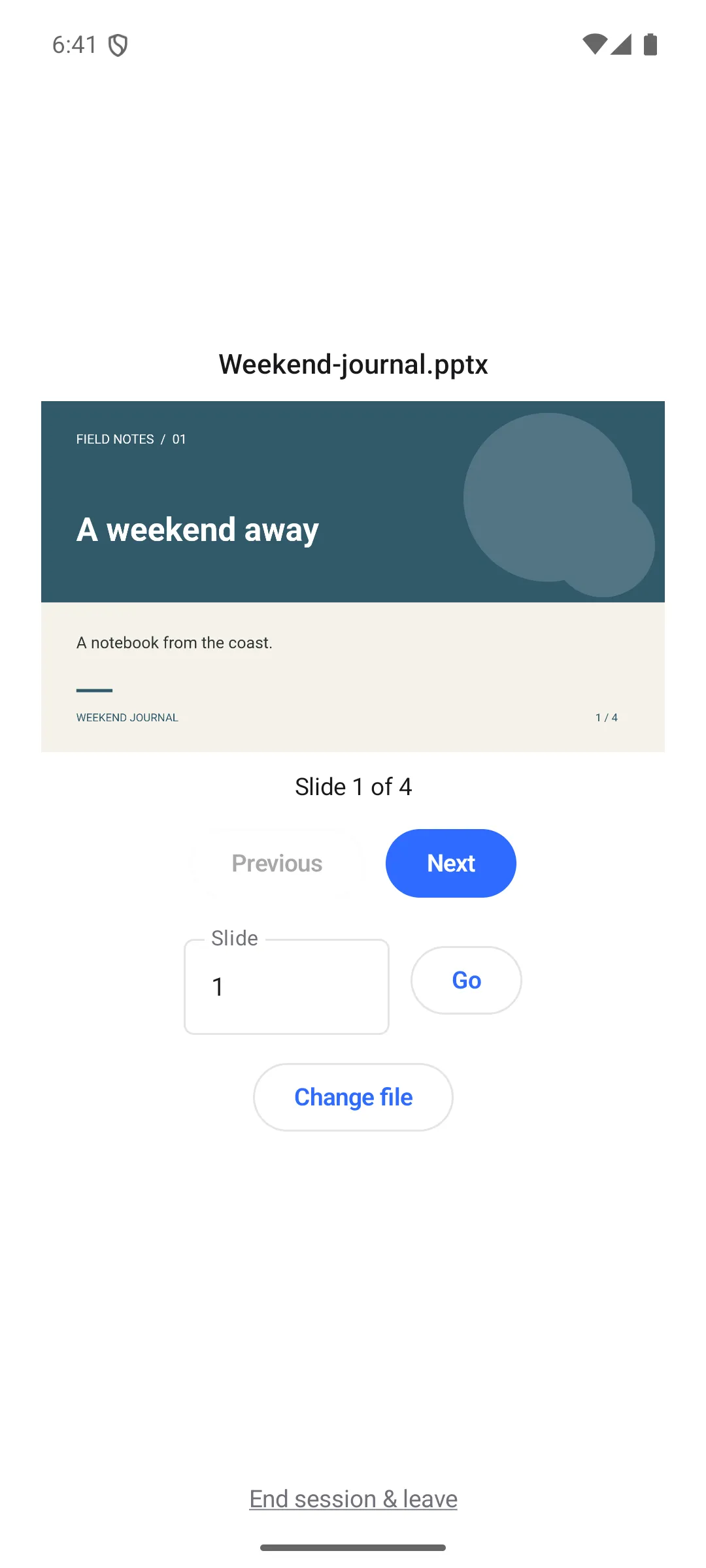
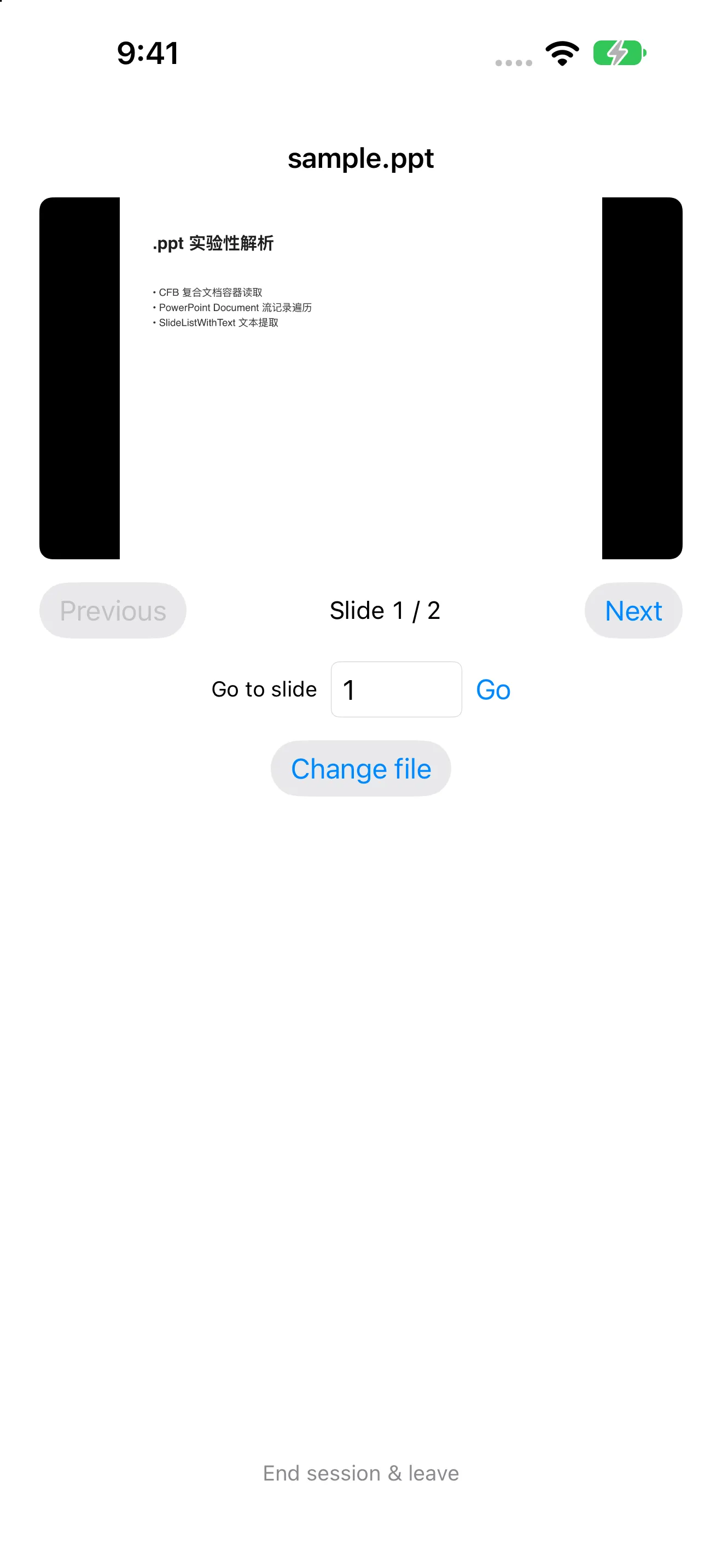
The phone apps also open PPT and PPTX files through their file picker and provide slide navigation. These screenshots show actual app sessions from platform testing, including a legacy PPT file on iPhone.
Static slides, with formatting to check before presenting
- No animations, transitions, or embedded video playback: each slide is a still image.
- Preview your deck: fonts and complex PowerPoint objects can render differently from Microsoft PowerPoint. Check important slides on the receiving Screen.
- For a fixed layout: export the deck to PDF in your authoring app, then follow the PDF casting guide.
- Desktop rendering: the desktop app uses a local LibreOffice installation to convert PowerPoint. The browser opens the deck directly and does not need LibreOffice.
If the deck will not open
Check that the file is a valid, nonempty PPT or PPTX and is not password protected. Renaming another file to .pptx does not convert it. If it still fails, try saving a fresh PPTX or exporting a PDF. When a replacement document cannot open, the web app reports the error and keeps the last completed slide on the Screen.
Select Change file to switch decks, or End session & leave to finish. The original presentation stays on your Projector; only rendered slide images travel to the Screen. Read theFAQ or browse all casting guides.