Chusko Blog · 2026-10-01
How to cast a PDF to a TV or another browser
Present a PDF from your browser, Android phone, iPhone, or iPad with Chusko. Pair a screen, turn pages, choose two- or four-page layouts, and rotate pages without a cloud upload.
Chusko can display a local PDF on a paired TV, computer, or tablet while you control the pages from the device holding the file. The web app opens PDFs directly in your browser. You do not need to install a PDF reader on the receiving screen or upload the document to a conversion service.
1. Pair the screen and projector
- On the receiving computer or tablet, open Chusko, choose I'm the Screen, then Host a room. On Android TV or Apple TV, open the Chusko TV app to use it as the Screen.
- On the device holding your PDF, open Chusko in a browser or the phone/tablet app and choose I'm the Projector.
- Enter the Screen's six-character room code and choose Join. Use the code currently shown on your own Screen.
Both devices need a network connection for pairing. The same Wi-Fi is a good starting point. A TV needs the Chusko app or a compatible browser; this does not connect to a TV's built-in Chromecast or AirPlay receiver.
2. Choose your PDF
Select Choose file on the Projector and pick a local.pdf. Wait for the first page to appear in the preview and on the paired Screen. Keep the Projector page open while presenting.
3. Turn pages, change the layout, or rotate
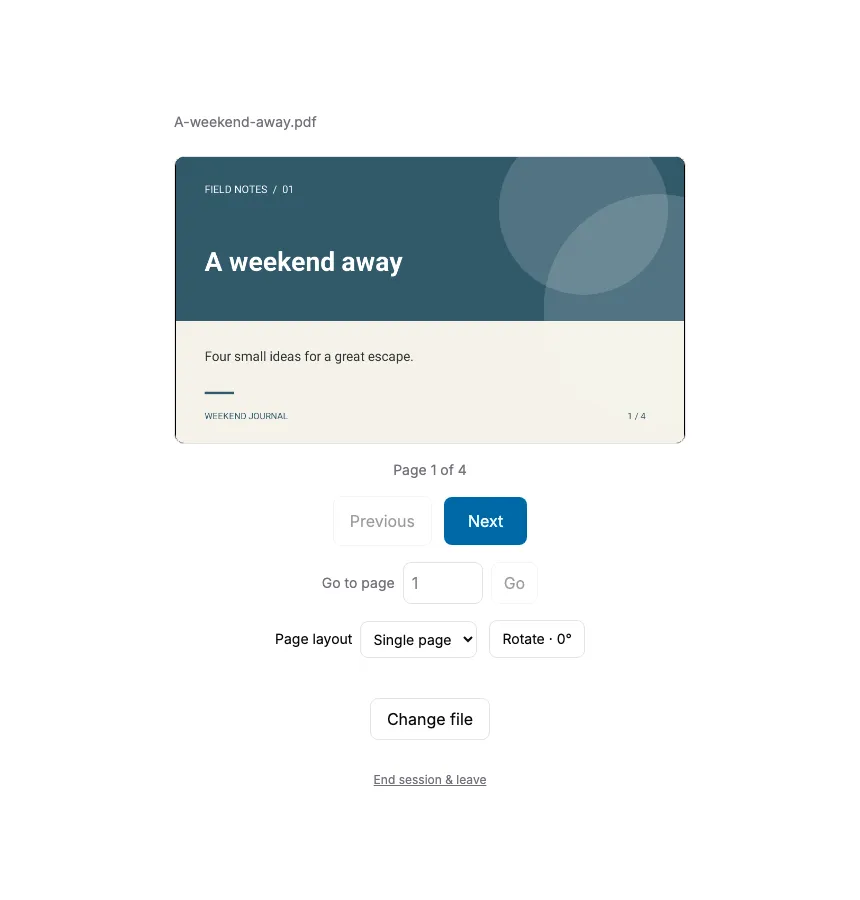
- Previous / Next: move through the document. In a two- or four-page layout, Next advances by that many pages.
- Go to page: enter a page number and select Go.
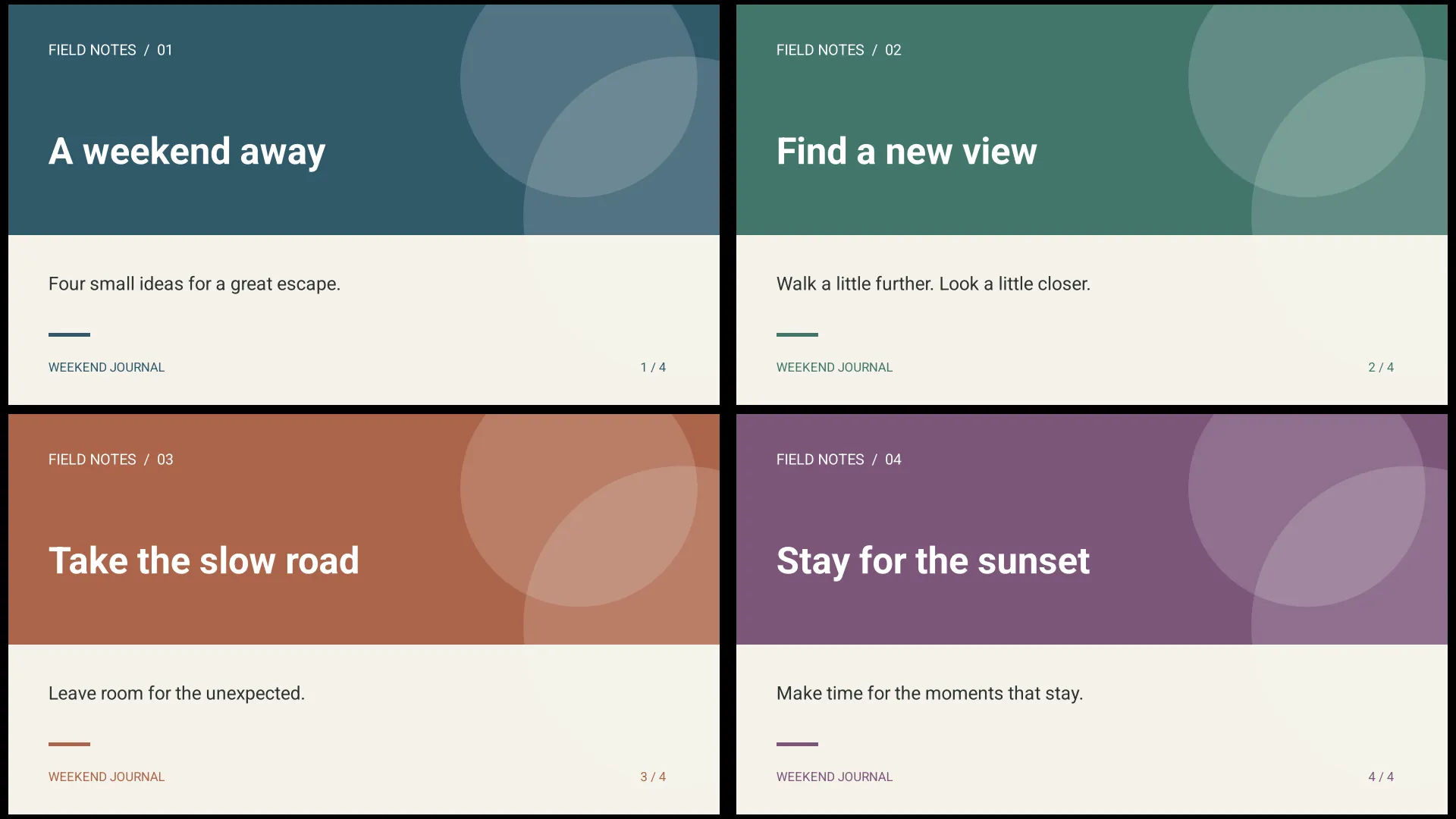
- Page layout: show a single page, two pages side by side, or a four-page grid. Use a single page when the text needs to be large.
- Rotate: turn the displayed pages in 90-degree steps.
In the browser, you can also use the arrow keys or Page Up / Page Down. Space advances; Home and End jump to the first and last page. Click outside a text field, button, or layout selector before using these shortcuts.
Present from Android, iPhone, or iPad
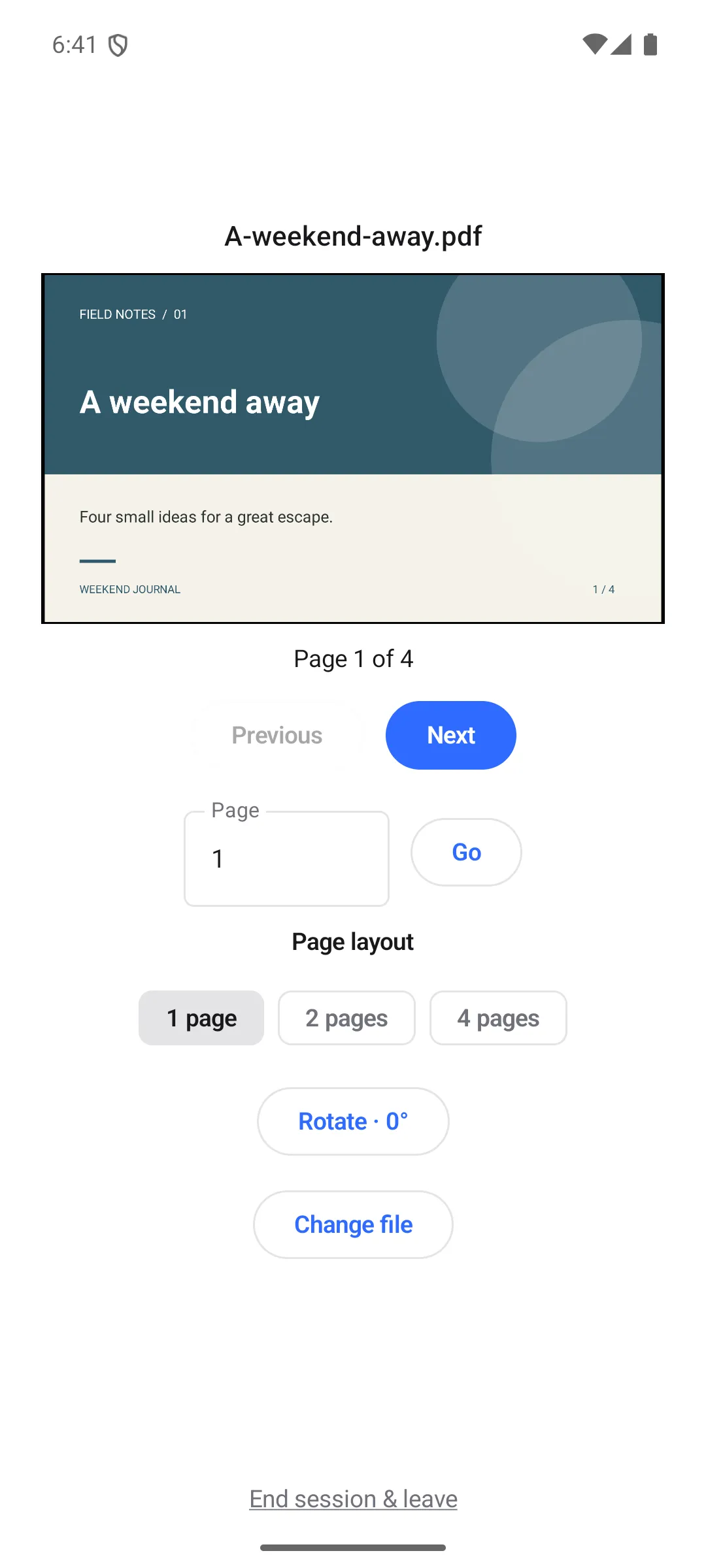
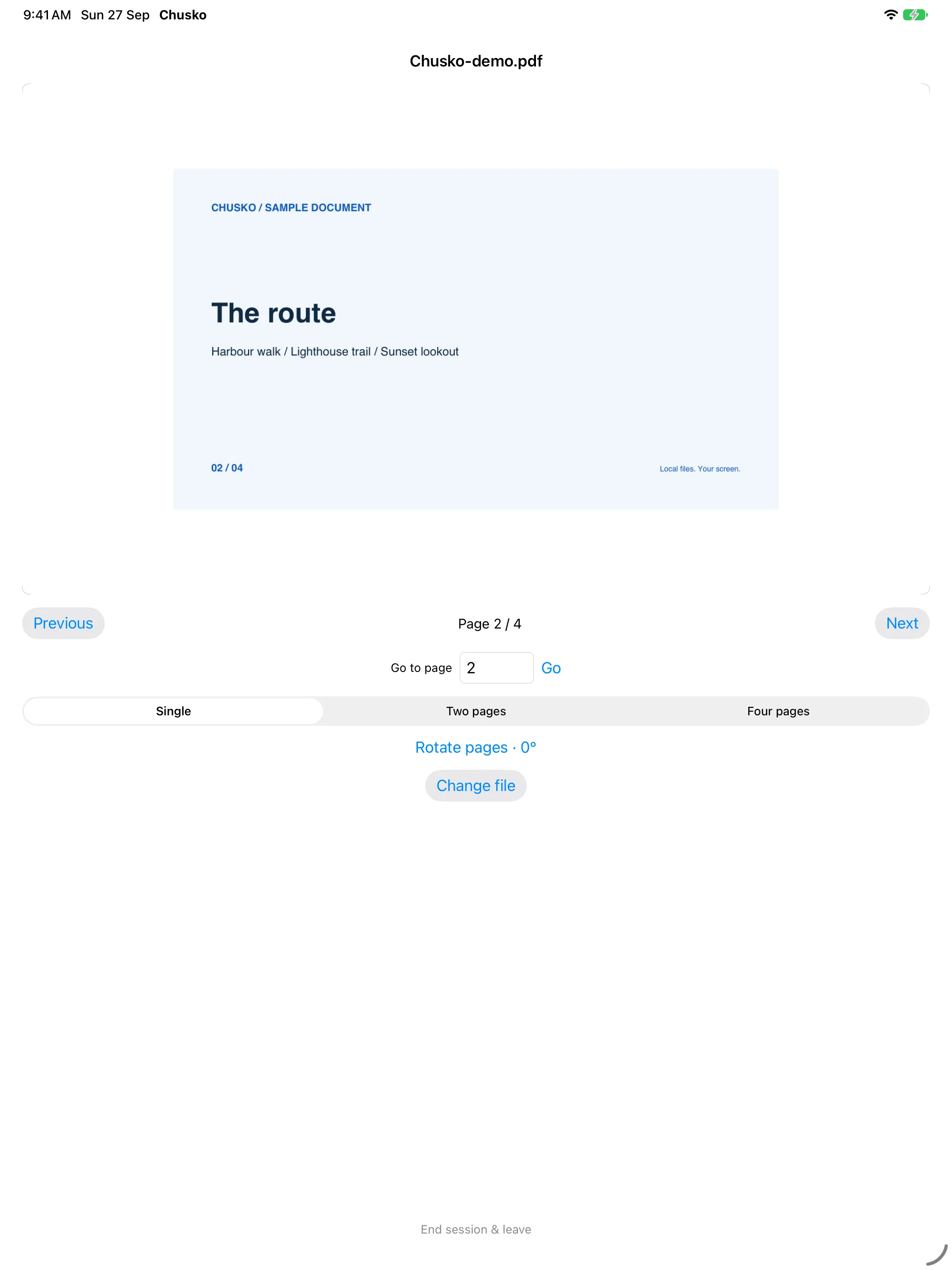
The native phone and tablet apps use the same Projector and Screen roles. Choose the PDF through the system file picker, then use the page controls. The arrangement of the buttons varies by platform; the page, layout, and rotation choices serve the same purpose.
What is sent to the screen?
Chusko renders the selected pages on the Projector and sends page images directly to the Screen. The original PDF stays on the Projector. The Screen displays those images, so PDF links, forms, and selectable text are not interactive there. See the privacy policy for more.
If a PDF does not open or looks too small
- Password-protected file: save an unlocked copy before choosing it.
- Invalid or empty file: check that it opens in your PDF reader, then export a fresh PDF if needed.
- Small text: switch to a single page. Four-page layouts trade text size for an overview.
- No page on the Screen: check that both devices are still in the same room and the Projector is connected.
Use Change file to present another document, or End session & leave when finished. For slide decks, follow thePowerPoint casting guide.